
The tree and the list
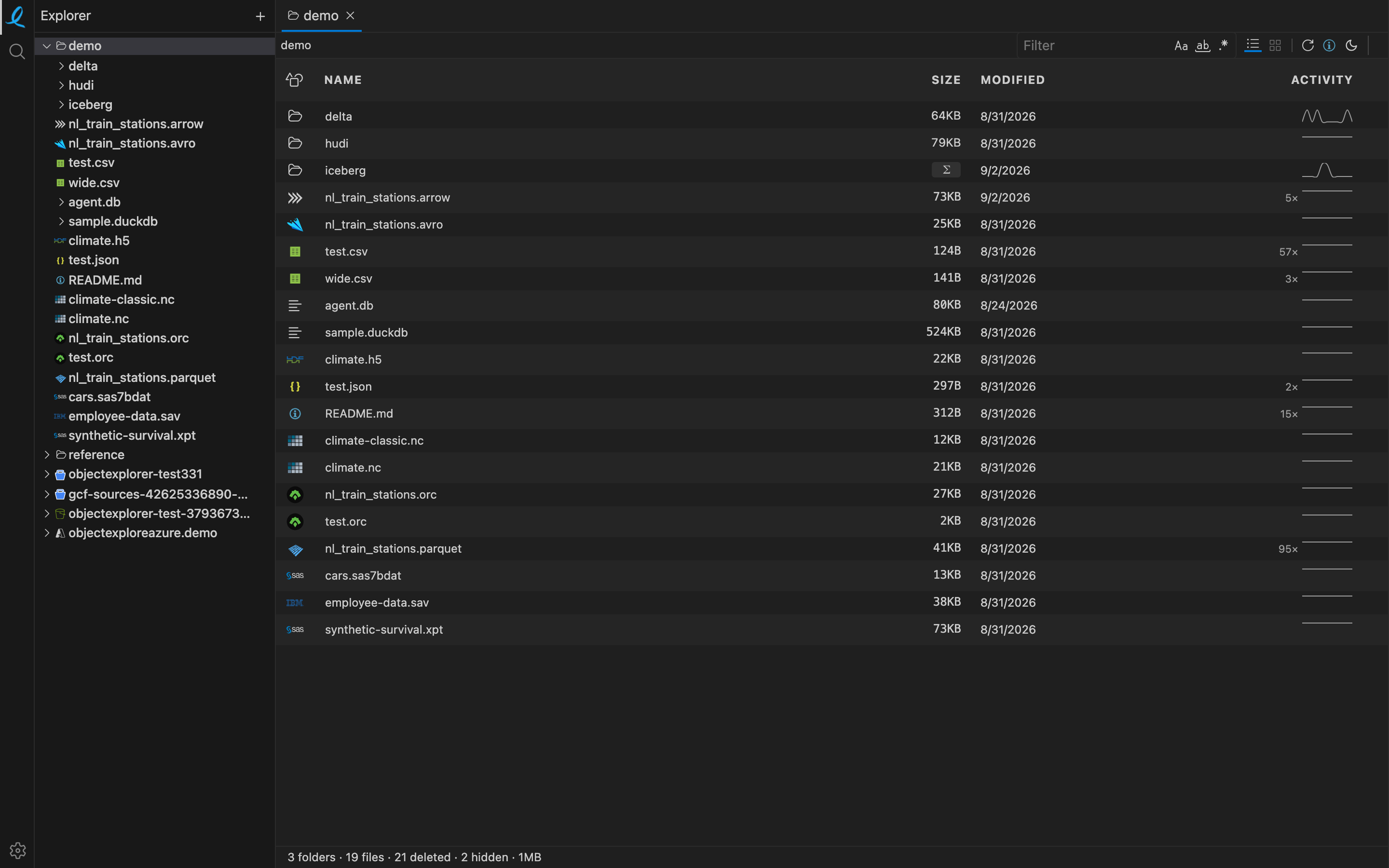
The sidebar holds every root you added — local folders and cloud buckets in one tree, in the order you added them. The pane beside it lists whatever is selected.
The columns
| Column | What it says |
|---|---|
| Name | with the icon of the format, not of the extension |
| Size | the object's size; a folder shows Σ until its size has been walked |
| Modified | the provider's own timestamp |
| Cost/mo | what keeping this object at its storage class costs per month, for cloud rows |
| Activity | a sparkline of how this object's size has moved over the visits the app remembers |
Every listed object also carries a record of its own — first seen, how many times it was opened, its storage class — which the info button shows.
Reading a folder again
Cloud listings are cached for eight hours, so stepping back into a prefix you were just in does not pay for another listing. The refresh button asks the provider again, past that cache: the pane goes blank while the request is out, so the answer on screen is visibly the answer to the click rather than what was already there.
Hidden and deleted rows
Two toggles decide what the list shows beyond the obvious:
- Hidden — dot-files and the folders a platform hides.
- Deleted — a name this folder had before and does not have now. Nothing is marked deleted until a folder that knew the name lists it again without it, so the mark means "it went", not "it was never here".
Keyboard
Arrow keys walk every row; → enters a folder and ← steps out; Enter opens what is selected. The full list is on keyboard shortcuts.
Next: previewing an object.